

Guides
Step-by-step training for new receptionists. Work through these in order — by the end you'll be ready to take calls and submit enquiries on behalf of Buildfix.
Submit an Assessment Enquiry
Use this when a caller wants a free structural assessment — the most common request.
- 1
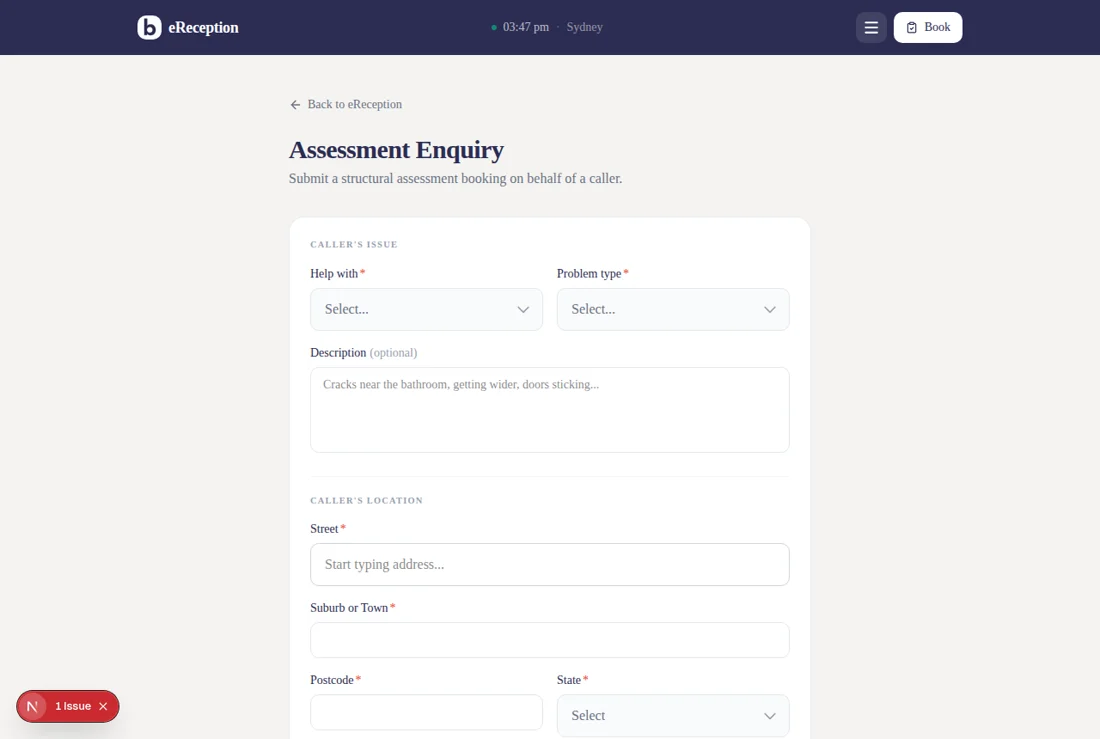
From the eReception home, click the big Assessment Enquiry card (or press B on the keyboard).
- 2
Under Caller's Issue — pick who the caller is (Help with), pick the problem type (wall cracks, subsidence, etc.), and paste in anything extra they've said.
- 3
Under Caller's Location — start typing the address in the Street field. Google Maps will autocomplete; pick the right match and the suburb, postcode, and state fill themselves.
- 4
Pick the property type (House, Townhouse, etc.) and property age.
- 5
Under Caller's Details — enter their first name, last name, email, and phone. Tell them we'll call to confirm a time.
- 6
Click Submit. You'll see a green success confirmation. The enquiry is now in the Buildfix platform.
Tip: The assessment is FREE. If the caller hesitates on giving details, reassure them — no charge, no obligation, 30–60 minute appointment.
Submit a General Enquiry
Use this for anything that's NOT a booking — account questions, invoice requests, job-in-progress queries, anything else.
- 1
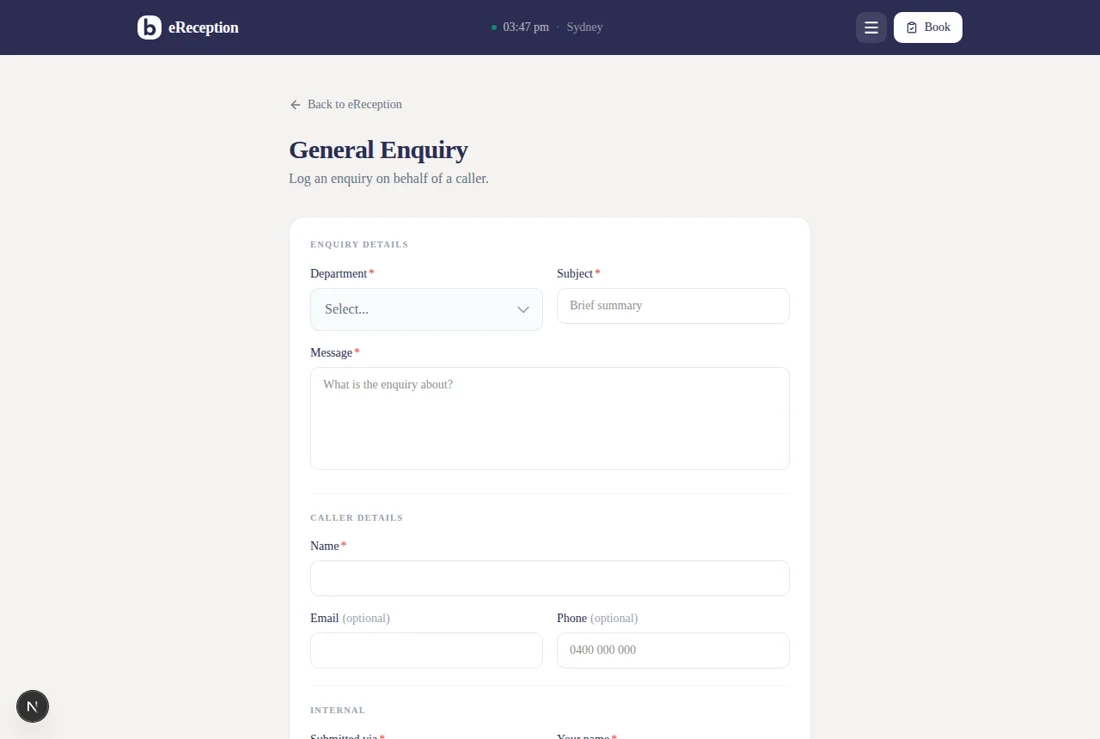
From the eReception home, open Quick Links on the right and click General Enquiry.
- 2
Under Enquiry Details — pick the right Department from the dropdown (Enquiries, Assessment, Projects, Accounts, IT, Directors, Your Phones Covered, Other).
- 3
Write a short Subject (one line — what the enquiry is about). Then paste or type the full message in Message.
- 4
Under Caller Details — enter their name, and email or phone if they gave it (both optional).
- 5
Under Internal — pick how the enquiry came in (phone, email, etc.) and enter your name so the team knows who took the call.
- 6
Click Submit. The enquiry is routed to the right inbox by department.
Watch out: If the caller is asking for a structural assessment — do NOT log it as a General Enquiry. Use Assessment Enquiry instead.
Navigate the References
Use this to find answers during a call — FAQs, About Buildfix, Scripts, and anything else in the portal.
- 1
The eReception home is your starting point. The big navy card is Assessment (the main task). Quick Links on the right get you to everything else.
- 2
Click FAQs for the most common caller questions — split into Operational (how we work) and Customer (what homeowners ask).
- 3
Click About Buildfix for company facts — phone number, service areas, trust signals, our process.
- 4
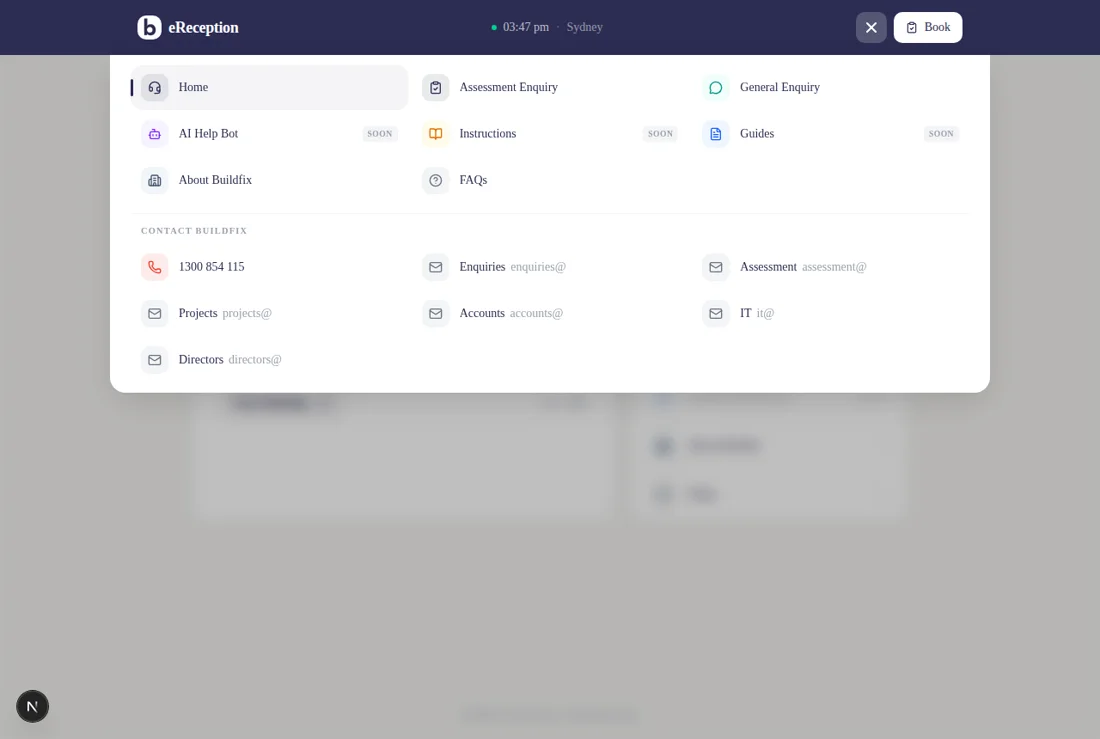
For full navigation, click the hamburger menu (top-right in the header). This opens an overlay with every page in the portal plus all Buildfix contact emails.
- 5
The Return to homepage link at the top-left of every page takes you home.
Tip: Press Ctrl+F (⌘F on Mac) on the FAQs page to search by keyword — faster than scrolling when the caller's on hold.
Use the AI Help Bot
Ask the Buildfix AI anything about services, pricing, warranty, or how a repair works — it's trained on everything Buildfix does.
- 1
From the eReception home, click AI Help Bot in Quick Links. A chat drawer slides open from the right.
- 2
Type a question in plain English — e.g. 'Caller is asking how long underpinning takes' or 'What should I say about the warranty?'
- 3
The AI reads from the full Buildfix knowledge base and replies in 1–2 sentences with a suggested phrase you can read to the caller.
- 4
It will also tell you the next action — 'Submit an Assessment Enquiry' or 'Submit a General Enquiry to Projects', etc.
- 5
If the AI doesn't know, it will say so — never guess at an answer to the caller. Fall back to FAQs, About Buildfix, or transfer to a human team member.
Tip: The AI Help Bot is also available from the hamburger menu on every page — you don't need to go back to the home screen to open it.
Stuck on something?
Check the FAQs for common caller questions, or the About Buildfix page for company facts. Still stuck? Transfer the call or log it as a General Enquiry routed to the right department.